 Storeino
Global Helpers
Embarking on Development
With your Config structure meticulously established, the path to development unfolds before you.
To streamline your development journey and provide unfettered access to theme data, we've seamlessly integrated modules, functions, and events. These invaluable aids will accompany you throughout your development endeavors.
Rest assured, these helpers are readily available via the $root object, ensuring universal accessibility across your application. To harness these helpers, invoke them using the syntax this.$HELPER_PATH, where HELPER_PATH signifies the specific helper's path or name.
In the forthcoming segments, we'll unveil these Helpers, unveiling when and how to wield their power to enhance your development process. Prepare to harness these tools and embark on a transformative coding odyssey.
Settings
The settings helper serves as your gateway to a wealth of essential theme data. By invoking [object] = this.$settings, you unlock a comprehensive array of information that transcends the confines of your current configuration. Noteworthy data included within this helper encompasses:
- Theme currencies and languages, enriching the global context of your project.
- Meta tags, pivotal for SEO and metadata optimization.
- Checkout data, facilitating seamless transactional processes.
- Integration with Facebook and Snapchat pixel, extending your theme's reach to these platforms.
To seamlessly call up the settings helper into your code, follow this example:
<template>
  <div>
    <h2>Settings</h2>
    <div>
      {{ $settings }}
    </div>
  </div>
</template>

<script>
export default {
  data() {
    return {
      settings: null,
    };
  },
  mounted() {
    this.settings = this.$settings;
    console.log(this.$settings);
  },
};
</script>
Empowered by the settings helper, you possess a potent tool to navigate and manipulate diverse facets of your Storeino theme, ensuring optimal performance and enhanced user experiences.
Getters
Getters grant you the ability to precisely select items based on specific filters passed through parameters. This powerful helper empowers you to effortlessly retrieve products, collections, and pages within your Storeino theme.
To illustrate, consider the following syntax for selecting a product using its slug:
const product = await this.$storeino.products.get({
  params: { product_slug: value },
});
For collections and pages, the same syntax holds true, offering a unified approach to accessing diverse theme components.
Parameters guide the selection process:
Product_slug :String - The slug of the target product.Product_name :String - The name of the product being sought.Product_id :String - The unique identifier of the desired product.
When successfully executed, the response manifests as a JSON format, furnishing comprehensive details about the selected product, collection, or page. This dynamic retrieval mechanism empowers you to wield theme data with precision, enhancing your development endeavors.
Searches
The "Searches" feature empowers you to seamlessly select items from products, collections, and pages. Its flexibility accommodates both parameter-less usage, facilitating the selection of all elements, and parameter-based selection, refining your results according to specified filters.
Let's delve into the syntax with a practical example:
const params = { search: "t-shirt", page: 1, limit: 5 };
const { results, paginate } = await this.$storeino.products.search(params);
This powerful capability extends beyond products, as you can employ the same syntax for collections, pages, categories, reviews, upsells, and brands.
For products, you can utilize the following parameters:
\_id :String - Identifies the desired product by its unique ID.\_id-in :Array - Selects products with specific IDs.\_id-ne :Array - Excludes products with designated IDs.collections.\_id-in :Array - Fetches products belonging to specific collection IDs.
When dealing with collections, consider these parameters:
\_id :String - Collection ID.parent :String - Collection parent ID.slug :String - Collection slug.\_id-ne :Array - Excludes collections with specific IDs.
For pages, adjust your approach with the "type" parameter:
type :String - Page type, such as "POST" or "PAGE".
Reviews can be filtered using:
product.\_id :String - Product ID.
When exploring upsells, utilize the following parameters:
product.\_id-in :Array - IDs of products.with :Array - Names of associated objects (e.g., products).limit :Integer - Limit the number of results.
A successful request yields a JSON object containing:
results :An array housing the retrieved results.paginate :An object featuring pagination properties.
Harness the power of "Searches" to elevate your data retrieval capabilities, enhancing your Storeino development experience with precision and efficiency.
Tools
Introducing the "Tools" module – a repository of invaluable helpers designed to streamline and expedite your development journey. To harness the capabilities of these helpers, employ the following syntaxes:
this.$tools.call(event_name, data)- Dispatch an event, promoting seamless communication.this.$tools.hexToRgb(hex_value)- Effortlessly convert a color from hexadecimal to RGB format.this.$tools.copy(value)- Duplicate the value of an object or an array for optimized efficiency.this.$tools.setCart(String)- Establish the cart within a cookie, ensuring smooth cart management.this.$tools.reformCartItem(cart)- Restructure the cart data to enhance its usability.this.$tools.toast(messages, type)- Display impactful flash messages, such as success, danger, or information.this.$tools.cookieToObject(cookie)- Transform the value of a cookie into a JSON object, facilitating data manipulation.
By seamlessly integrating these tools into your development process, you unlock a realm of efficiency and innovation, elevating your Storeino project to new heights. Embrace these helpers as essential assets, enhancing your coding experience with precision and effectiveness.
Events
In addition to the injected global functions, our toolkit incorporates global events that can be seamlessly dispatched throughout your application. To initiate an event, simply utilize the "call" helper from the tools module:
this.$tools.call(event_name, data);Below, you'll find a compendium of currently available events, each serving distinct purposes across your application:
| PROPERTY_NAME | Typical usage | data |
|---|---|---|
| ADD_TO_CART | Add products to cart | { product,quantity ,?startApplication } |
| REMOVE_FROM_CART | Remove products from cart | { product } |
| ADD_TO_WISHLIST | Add products to wishlist | { product } |
| REMOVE_FROM_WISHLIST | Remove products from wishlist | { product } |
Leverage these global events to amplify interactivity and communication within your Storeino application, ushering in a new level of engagement and responsiveness.
Language and Currency
Managing language and currency preferences is made straightforward within Storeino. The current language and currency are conveniently stored in a global state variable:
const currentLanguage = this.$store.state.language;
// { name: "English", code: "EN" }
const currentCurrency = this.$store.state.currency;
// { symbol: "$", code: "USD" }
Furthermore, the language and currency codes are automatically saved in cookies using the keys:
CURRENT_LANGUAGE = EN;
CURRENT_CURRENCY = USD;
Access the repertoire of available languages through this code:
const languages = this.$settings.store_languages;
// [{ name: "English", code: "EN" }, { name: "العربية", code: "AR" }]
Similarly, fetch the list of currencies:
const currencies = this.$settings.store_currencies;
// [{ symbol: "$", code: "USD" }, { symbol: "د.م", code: "MAD" }]
To change the language, update the CURRENT_LANGUAGE cookie with the new language code and follow the same process for currency. Then, refresh the page to apply the changes:
document.cookie = "CURRENT_LANGUAGE=EN;path=/";
window.location.reload();
Alternatively, you can modify the URL with a query parameter for quick language or currency changes and achieve the same result:
<!-- Change language -->
<a href="?lang=EN">English</a>
<!-- Change currency -->
<a href="?cur=MAD">MAD</a>
By incorporating these practices, you empower users to seamlessly adjust language and currency settings, fostering a more personalized and user-friendly experience within your Storeino application.
Product structure
Behold the comprehensive roster of product fields, unveiling the richness and diversity within:
{
  "name": "String (product name)",
  "slug": "String (product slug/link)",
  "reference": "String (product reference)",
  "price": "Object (salePrice, comparePrice)",
  "type": "String (product type: simple or variable)",
  "html": "String (product description HTML string)",
  "images": "Array of objects (list of product images)",
  "quantity": "Object (stock information)",
  "options": "Array of objects (list of options, e.g., colors, sizes)",
  "user": "Object (publisher information)",
  "seo": "Object (SEO title and keywords)",
  "outStock": "Object (stock settings)",
  "review": "Object (rating and number of reviews)",
  "variants": "Array of objects (variants of options)",
  "collections": "Array of objects (related collections)",
  "tags": "Array of strings (related tags)"
}
To glean comprehensive details about a single product, a simple invocation of the search function will suffice:
const product = await this.$storeino.products.get({ slug: "t-shirt-2022" });In this code snippet, our omnipresent Vuex variable $storeino seamlessly retrieves a product with the slug "t-shirt-2022". You have the liberty to use the Storeino admin panel for product testing, or simply explore https://mahal-theme.storeino.com and inspect the API's returned data via your browser's network tab.
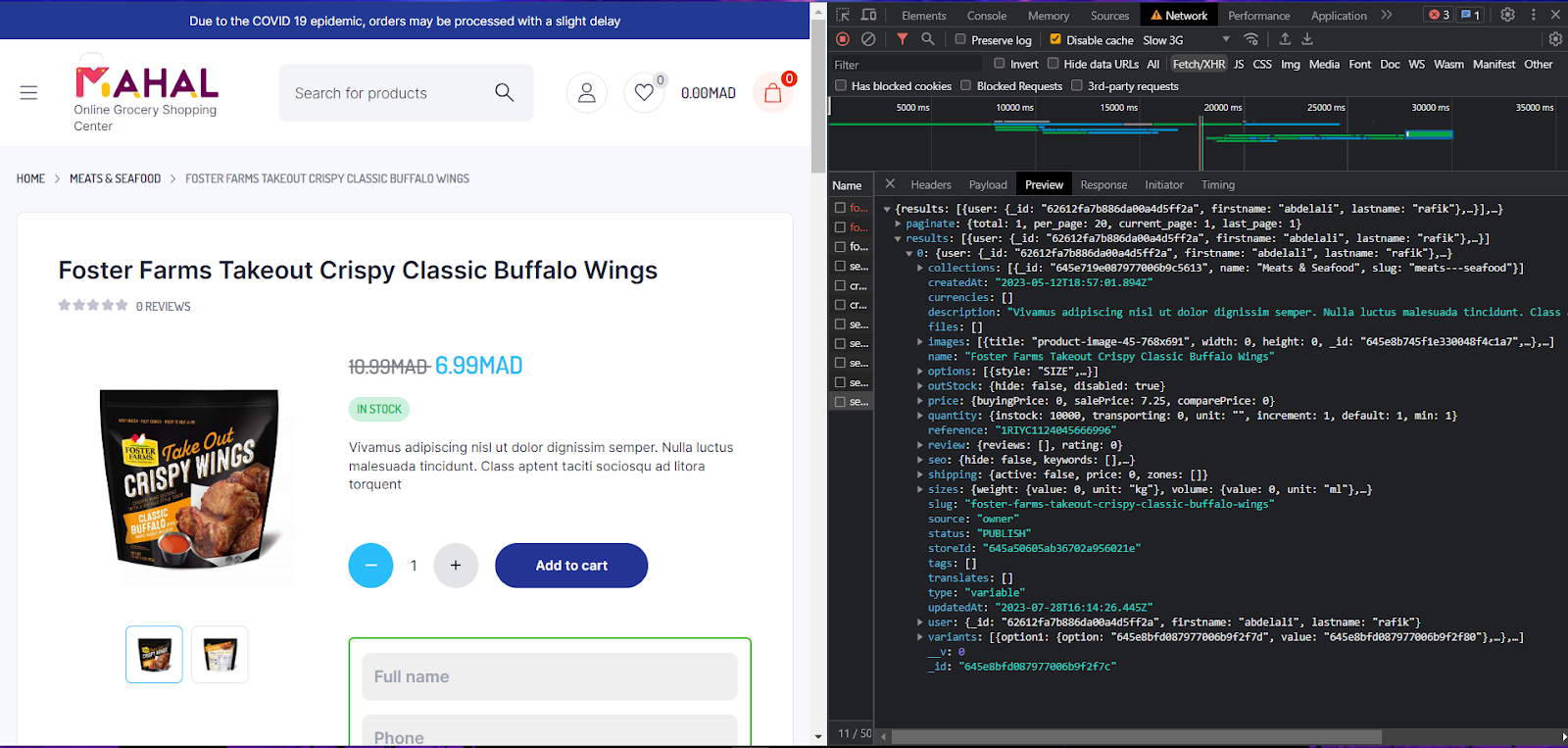
This methodology can be seamlessly extended to unveil the structures of other modules, offering a consistent approach for exploration and understanding. As you embark on your journey, don't hesitate to harness this code and log the outputs, providing you a comprehensive understanding of Storeino's intricate inner workings.
Cart structure
Behold the intricate ensemble that orchestrates the symphony of your cart:
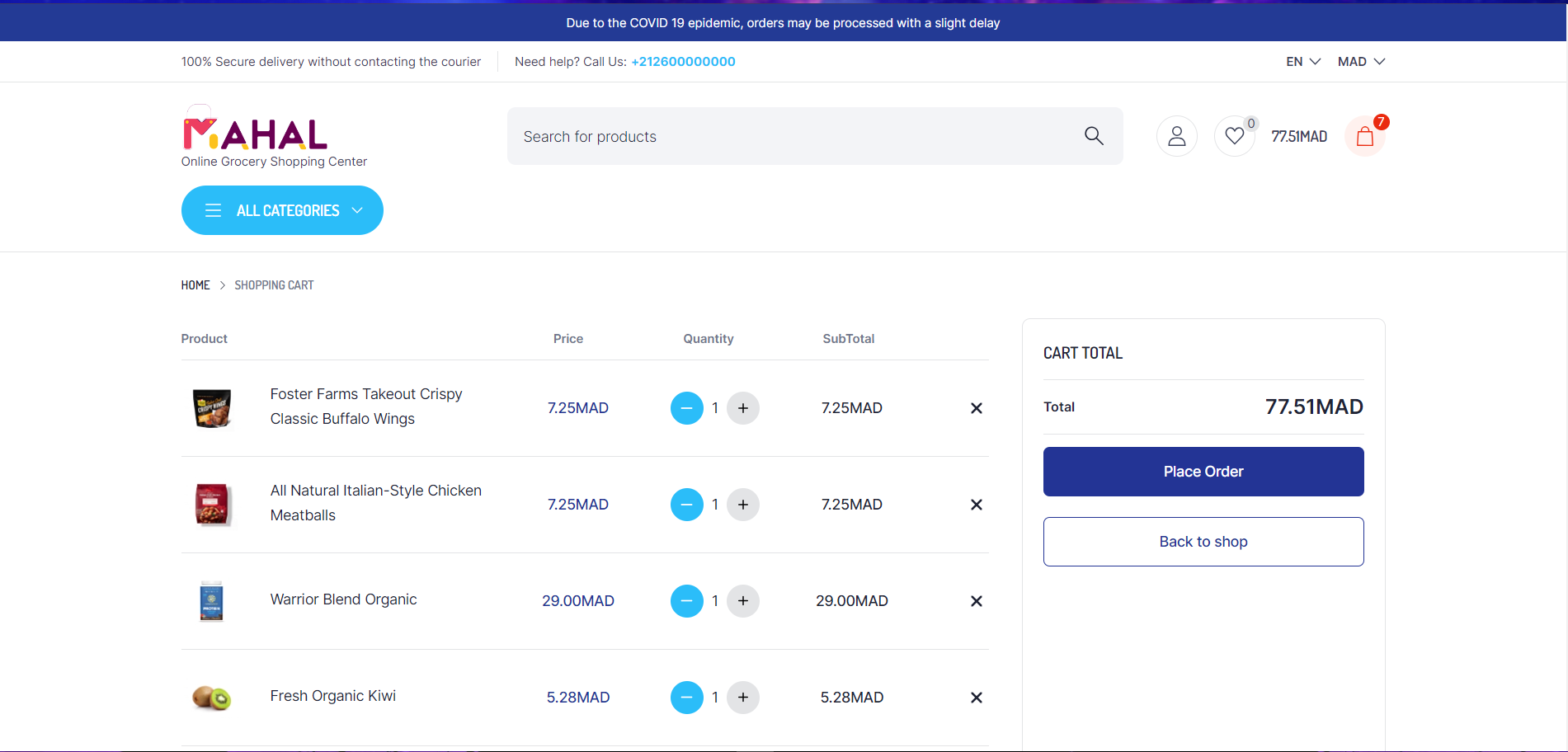
Exemple Cart structure
[
  {
    "_id": "617a8c354606901fca7a2cf3", //1
    "quantity": 1,
    "price": 100,
    "parents": []
  },
  {
    "_id": "617a8c3e4606901fca7a2ff5", //2
    "quantity": 2,
    "price": 70,
    "parents": [],
    "variant": {
      "_id": "617a8c3e4606901fca7a3006"
    }
  },
  {
    "_id": "617a8c214606901fca7a2a86", //3
    "quantity": 1,
    "price": 90,
    "parents": ["617a8c354606901fca7a2cf3"],
    "upsell": {
      "_id": "63d1ab40bd5e0fe54f67b1b1",
      "name": "UPSELL",
      "code": "10OFF",
      "type": "percentage",
      "value": 10
    }
  }
]
In the narrative of this cart, we encounter three protagonists:
- The initial traveler, a solitary product with a quantity of 1 and a price tag of 100, setting foot on the cart's voyage.
- The versatile voyager, a variable product, acquires two companions on this voyage, each bringing a quantity of 2, and a collective price of 70. A chosen variant, identifiable by its "_id", joins their company.
- The synergistic sojourner, a product which claims kinship with the first, possessing a quantity of 1, yet boasting a price of 90. This companion brings along an "upsell," a friend named "UPSELL," bearing a code "10OFF." This "UPSELL" is endowed with a 10% discount, transforming the journey for the better.
To usher a new passenger onto this cart expedition, a sacred ritual named "ADD_TO_CART" shall be conducted, accompanied by an offering in the form of an item:
// Perform the sacred rite of adding to cart
this.$tools.call("ADD_TO_CART", {
  _id: this.item._id,
  quantity: this.selectedQuantity,
  price: this.variant?.price?.salePrice || this.item.price.salePrice,
  variant: this.variant ? { _id: this.variant._id } : null,
});
During this ritual, "\_id" and "quantity" shall be provided, for they are the essential elements. As the journey progresses, rest assured that the mystical "STOREINO-CART" cookie shall safeguard the cart's cherished contents.