 Storeino
Testing in the builder
You have an index.vue and a manifest.json. Now make sure both work end-to-end inside the visual builder.
The two ways to test
Way 1 — directly on the storefront page
The fastest sanity check. No builder needed.
- Edit
souk-theme/pages/index.vue(or any other page) temporarily to render your section by hand:
<MyBannerSection :config="{ title: 'Test', layout: 'image-bg' }" />- Hit
http://localhost:3001/— your section renders inline.
This tells you the component compiles, the props flow, the layout works. It does not tell you whether the builder accepts your manifest or whether merchant edits flow through. Use it for the first 30 minutes, then move on.
Way 2 — through the visual builder (the real test)
Connect your local souk-theme to the deployed builder. Steps:
- Run souk-theme locally:
npm run dev→http://localhost:3001. - Expose it to the builder. If the builder iframe targets the merchant's
*.storeino.worldstorefront (the normal path), it won't talk to your localhost. Two options:- Easiest (for stagiaires): push your section to a dev branch, ask Abdel to deploy souk-theme to the dev CDN, then use the deployed builder normally.
- Local-only round-trip: ask Abdel for the
localhost:3001override setup. It involves a tunnel and a localStorage flag — not worth setting up for casual section work.
- Open the builder:
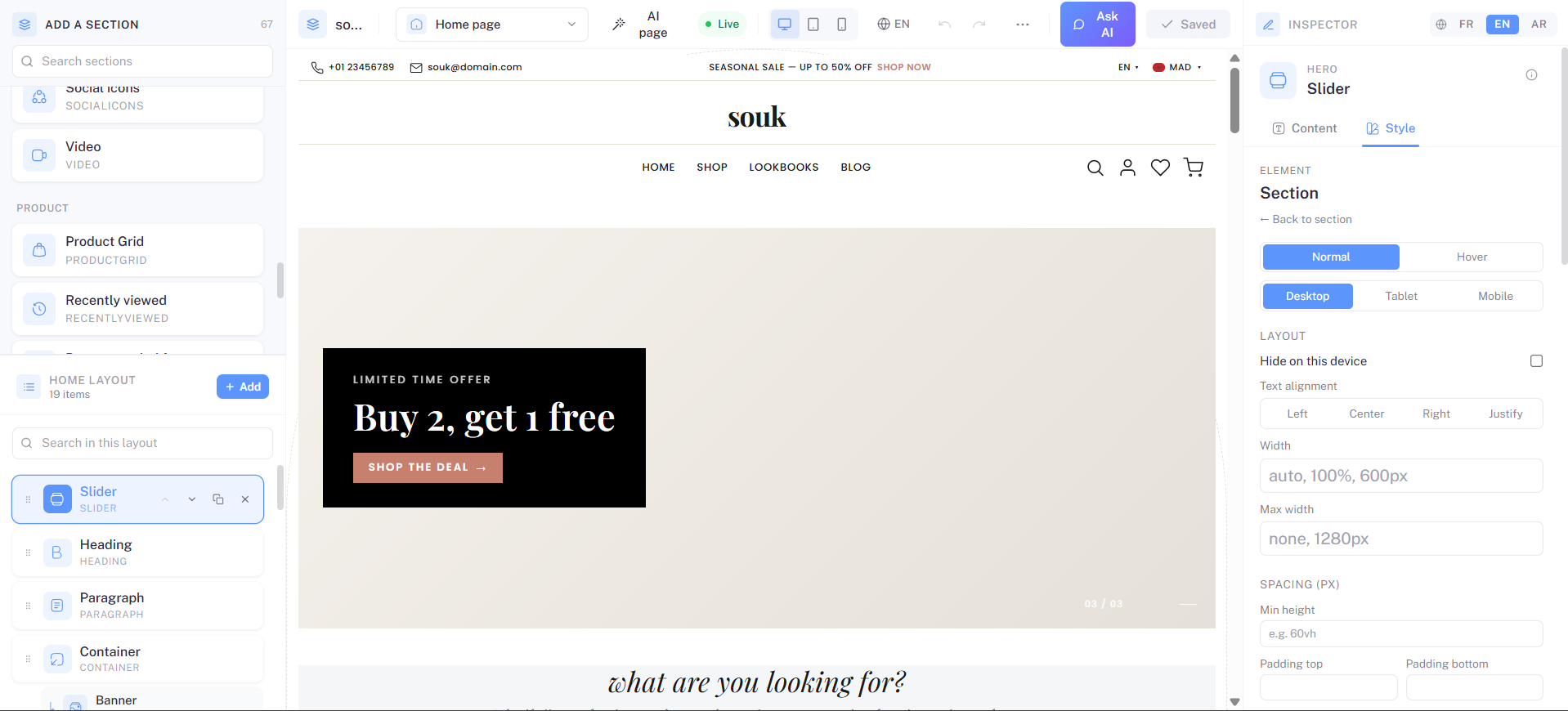
https://admin.storeino.world/stores/themes→ click Customize on a souk theme. - Find your section in the library. Top-left panel, scroll to the category you set in the manifest. Your section's icon + title should be visible.
- Drag it onto the canvas. It should appear with the manifest's
defaultsvalues. - Edit each field. Open the right-hand inspector. Confirm every schema entry shows up and is editable.
- Edit each styleKey. Switch to the Style panel; cycle through the dropdown; confirm color edits land on the right element.
- Save. Click the Save button (top-right). Refresh the storefront tab (without the builder). The section should render with your edits persisted.
A short manual test plan
Run through this checklist for every new section before considering it done:
- [ ] Dropping the section produces something visible (not an empty
<div>). - [ ] Every manifest field renders an input in the inspector.
- [ ] Editing each field updates the iframe live (no save needed).
- [ ] Translatable fields show the locale switcher and persist all three languages.
- [ ] Every
styleKeyhighlights the right element when hovered.
- [ ] Section renders correctly on a fresh shopper visit (no
?builder=true) after Save. - [ ] Layout doesn't break with all fields empty (clear the defaults; reload).
- [ ] Layout doesn't break at mobile width (Chrome DevTools device toolbar, 375px).
- [ ] Console is clean — no warnings about missing keys or hydration mismatches.
Live-editing behavior
When the builder is connected ("Live" pill is green) and you edit a field in the inspector, the iframe updates without a reload. That works because:
- The builder sends a
PATCHpostMessage to the iframe with the changed value. - The iframe's bridge plugin applies it to its in-memory Pinia store.
- Your component's
props.configis reactive — Vue re-renders automatically.
If editing a field requires a full reload to see the change, something is off:
- You may have read the value into a non-reactive ref (
const x = props.config.title→ usecomputed(() => props.config?.title)). - You may have cached the value at mount (
onMounted(() => { state.title = props.config.title })→ bad). - The field's
pathin the manifest may not match the key your component reads.
Reactive props end-to-end. Compute, don't store.
What's next
Open Troubleshooting when something doesn't work.